ChillSpace / A little help
Find your way
to a quieter evening.
Simple steps, with the real interface beside you. Start with a soundscape, discover a story, and make it part of your routine.
Open ChillSpace ↗YOUR FIRST SESSION
Make the space your own.
Build a gentle mix around the landscape you want to spend time in.
- 1
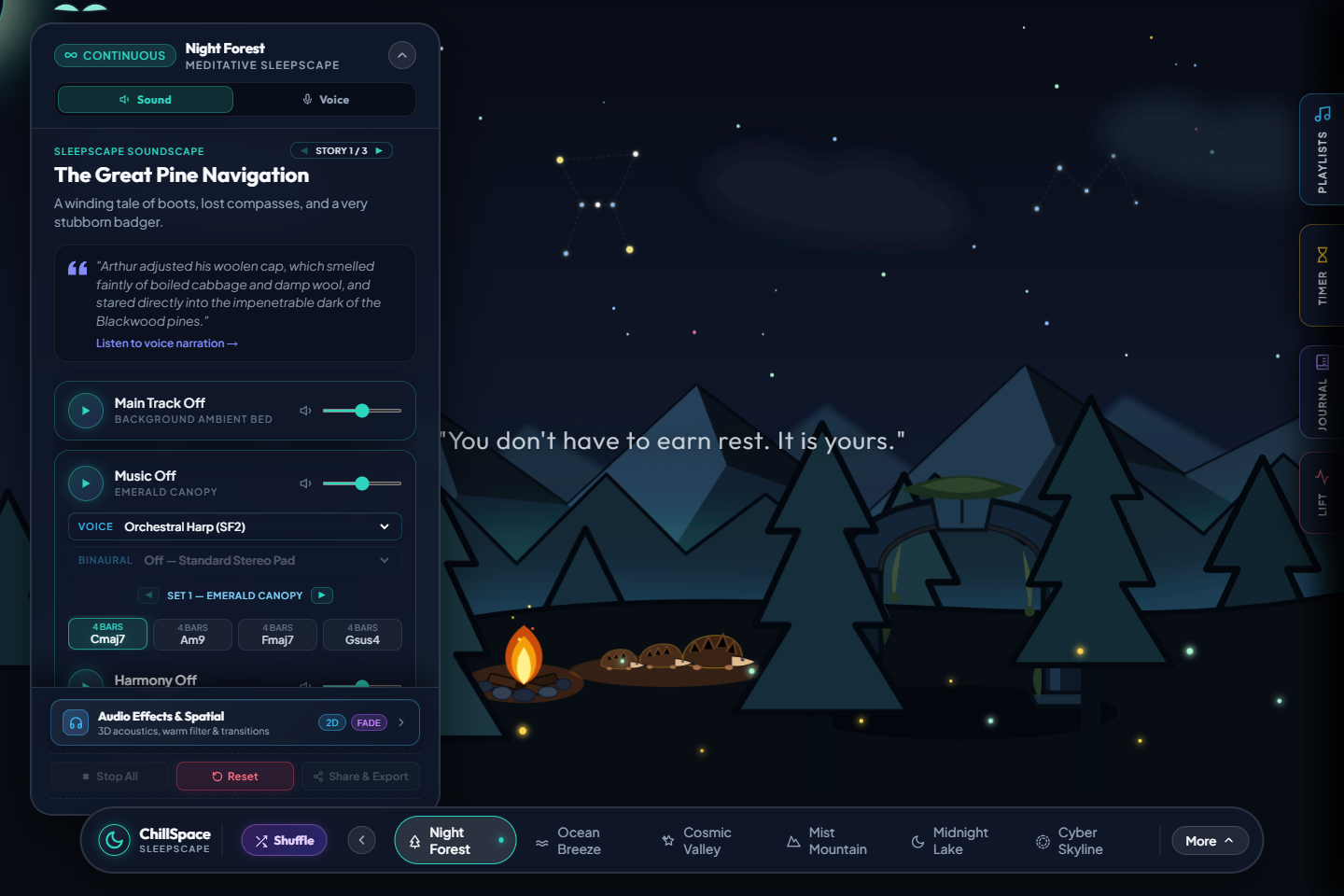
Choose a landscape
Use the scene names along the bottom of the screen. Each landscape has its own atmosphere and sound palette.
- 2
Start a sound layer
In the Sound tab, press the play control next to Main Track or Music. Browsers may require a tap before they allow audio.
- 3
Find your balance
Use the individual volume sliders to blend the layers. Scroll within the sound panel to discover more controls.
- 4
Explore spatial audio
Open Audio Effects & Spatial at the foot of the card. Choose settings that suit your headphones or speakers.
STORY TIME
Let the story take over.
Read along, personalise the details, or settle into a spoken bedtime story.
- 1
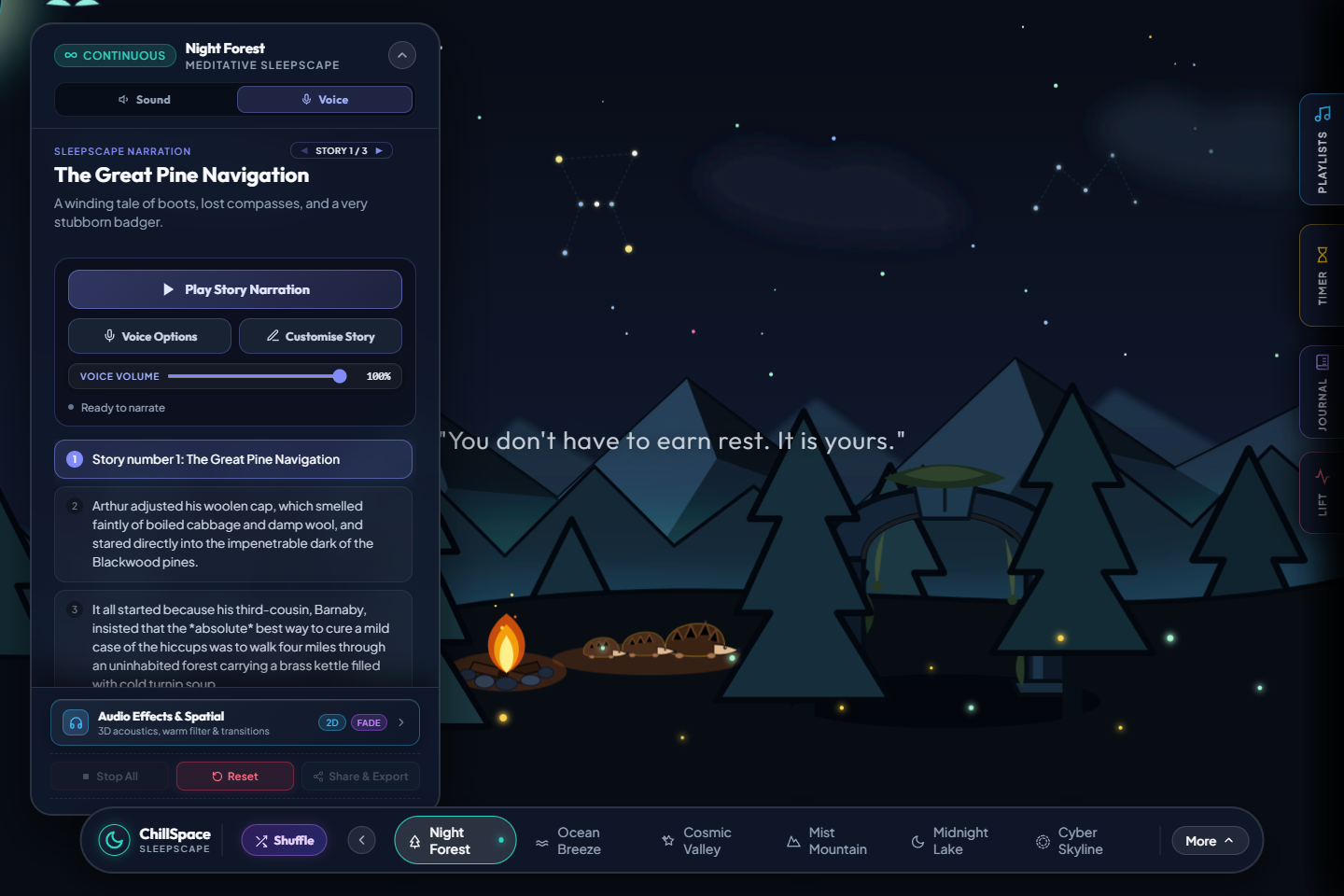
Open the Voice tab
Select Voice at the top of the scene card. Use the story arrows beside STORY to choose another story.
- 2
Set the voice and pace
Open Voice Options to choose a speaker, speed and pause between paragraphs. The Voice Volume slider adjusts narration level.
- 3
Make it personal
Open Customise Story to change the available character names and story details, then apply your changes.
- 4
Play and pause
Press Play Story Narration. The current paragraph is highlighted as the story progresses. Press Pause Narration to stop.
SAVE & RETURN
Keep your favourite moments.
Save mixes and line up stories without rebuilding your settings each evening.
- 1
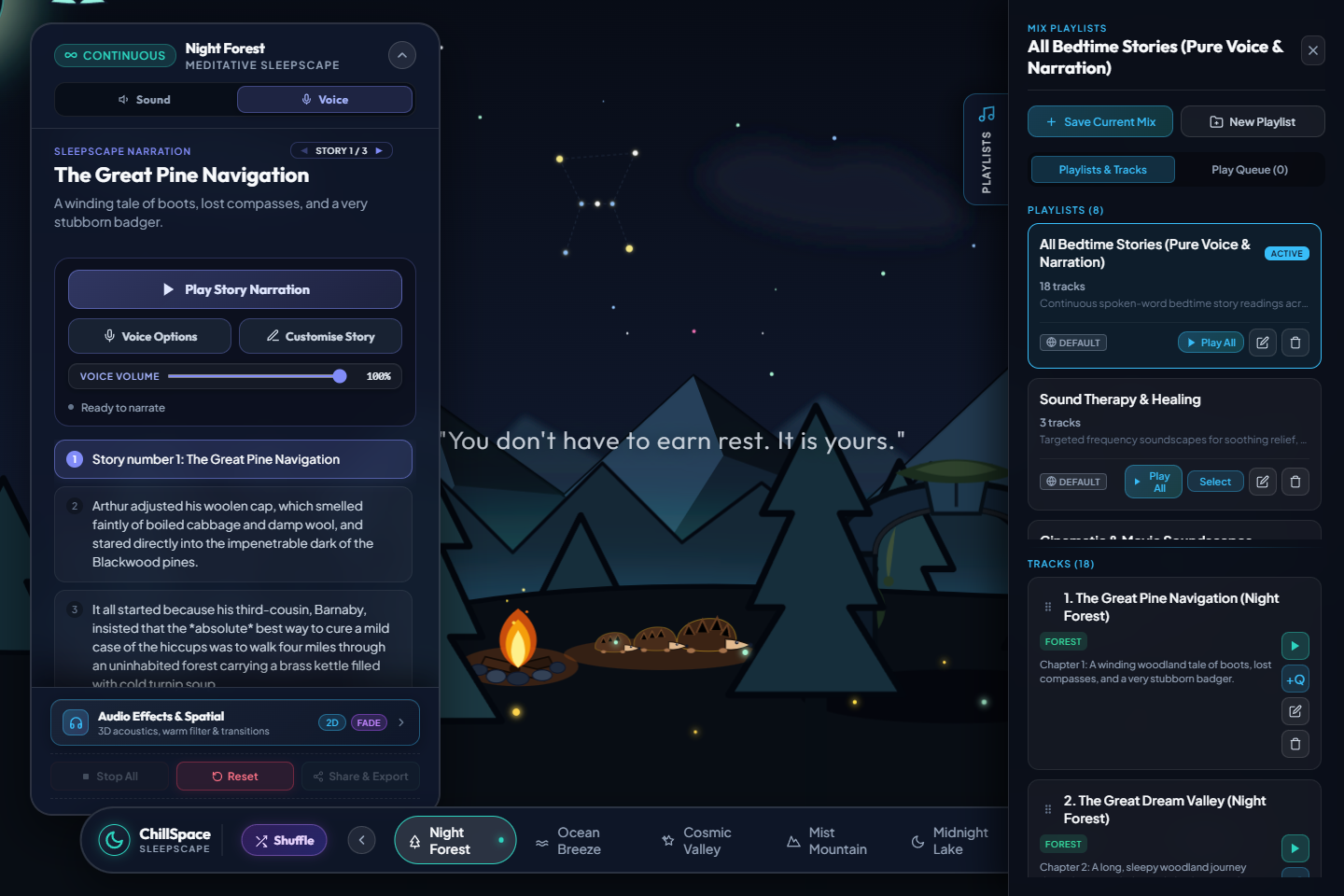
Open your library
Select the PLAYLISTS handle on the right edge. The drawer shows your playlists above the selected playlist’s tracks.
- 2
Save the current mix
Choose Save Current Mix to capture your current settings. Follow the naming prompt to make it easy to find again.
- 3
Organise your collection
Use New Playlist to create a collection, then select it to see its tracks. Available editing actions depend on ownership.
- 4
Queue what comes next
Use +Q beside a track, then open the Play Queue tab to see the order. Queued stories can advance when narration ends.
WIND DOWN
Give the evening a gentle ending.
Set a sleep timer so the soundscape has an end point.
- 1
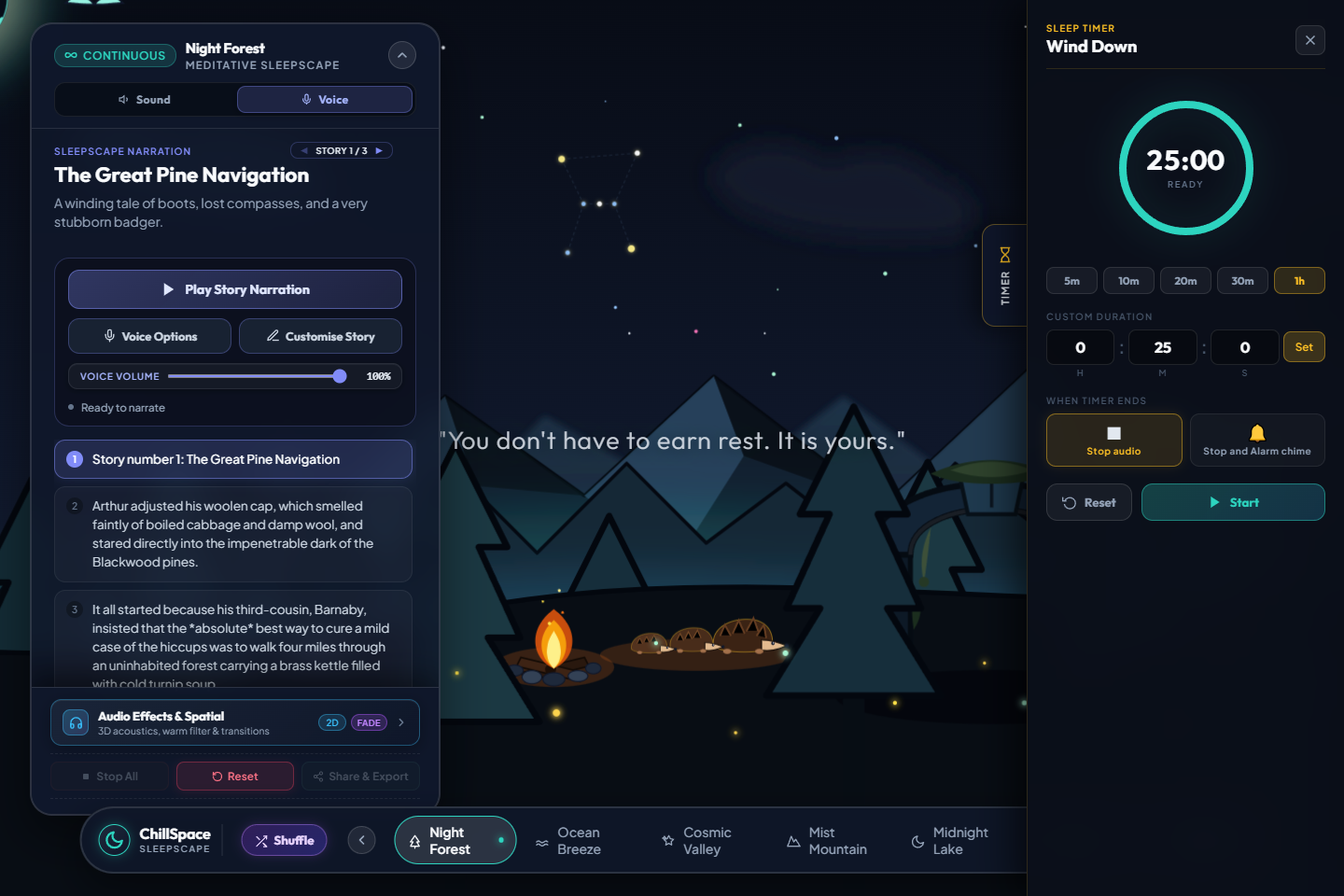
Open the timer
Select the TIMER handle on the right edge. The ring shows the selected duration or remaining time.
- 2
Choose a duration
Select a preset such as 10m or 30m. For a precise duration, enter hours, minutes and seconds, then select Set.
- 3
Choose how it ends
Select Stop audio for a quiet finish, or Stop and Alarm chime if you want an audible signal.
- 4
Start your countdown
Press Start. Use the same control to pause the timer, or Reset to begin again with your chosen duration.
ABOUT THESE SCREENSHOTS
The actual interface, captured.
Captured on 15 October 2026 using Chromium / 155.0.4283.45 at 1440 × 960. These images show a local development build with fresh browser storage. Your scene, saved playlists and layout may differ.
Browser checks performed during capture
- passed Soundscape controls are visible
- passed Story panel opens with narration controls
- passed Playlist drawer opens and closes
- passed Sleep timer panel opens
- passed Export progress updates the share label (simulated rendering)
- passed Shared audio handoff stops audio and sends the narration stop event
These checks verify panel visibility and interactions. They do not test listening quality or assert that a cloud narration request succeeds.